Cohort Synchronisation
Cohort synchronisation lets you target feature flags at the cohorts you have already built in your analytics platform. Once connected, each cohort you synchronise appears in Flagsmith as a segment, and its members are kept up to date automatically as they enter or leave the cohort.
This means you can define your audience once — in your analytics platform, using behavioural data Flagsmith does not have — and use it to control features: roll out to power users, run a beta with churned-and-returned customers, or kill a feature for a cohort that is hitting errors.
Cohort synchronisation is available on paid plans.
Supported providers
How it works
- Each cohort becomes a segment. When a cohort is synchronised for the first time, Flagsmith creates a segment with the same name as the cohort. It appears on your Segments page alongside your other segments and can be used in segment overrides in the same way.
- Membership is managed by your analytics platform. The segment's members are exactly the cohort's members. You cannot edit the segment's rules in Flagsmith — to change who is in it, change the cohort definition in your analytics platform.
- Members are matched by identity identifier. A cohort member is matched to the Flagsmith identity with the same identifier. Your application must identify users with the same value on both platforms.
- Synchronisation is scoped to one environment. You connect a provider to a specific environment, and cohort membership is synchronised into that environment only. The segment will not match anyone in your other environments.
- Updates flow automatically. Whenever your analytics platform sends membership changes — on its own schedule — Flagsmith applies them. Changes are applied asynchronously; very large cohorts can take a few minutes to fully synchronise.
Synchronisation keys
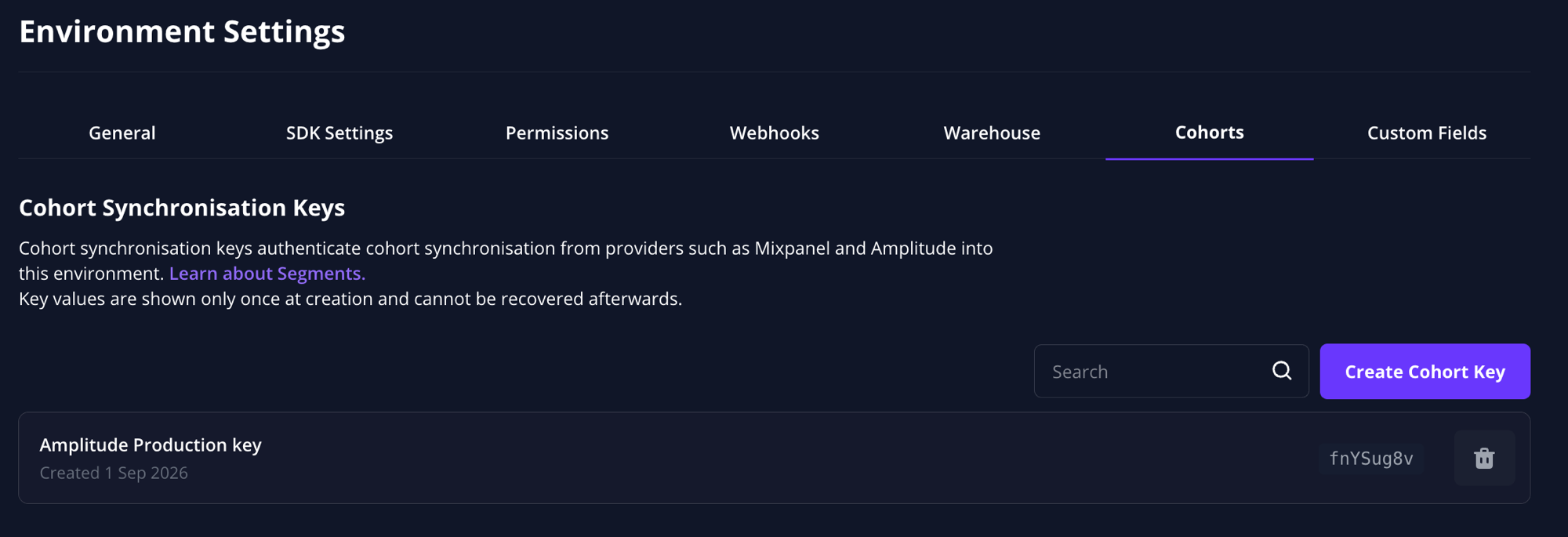
Providers authenticate with Flagsmith using a cohort synchronisation key:
- Keys are created per environment and work for any supported provider.
- The key value is shown only once, at creation. Store it securely — if you lose it, create a new key.
- You can create multiple keys per environment, and revoke a key at any time from Environment Settings > Cohorts. Revoking a key immediately stops any synchronisation that uses it.
- Creating and revoking keys requires the Manage segment overrides permission for the environment and the Manage segments permission for the project.
Using a synchronised segment
Shortly after the first sync, a segment named after your cohort appears on the Segments page of your project.
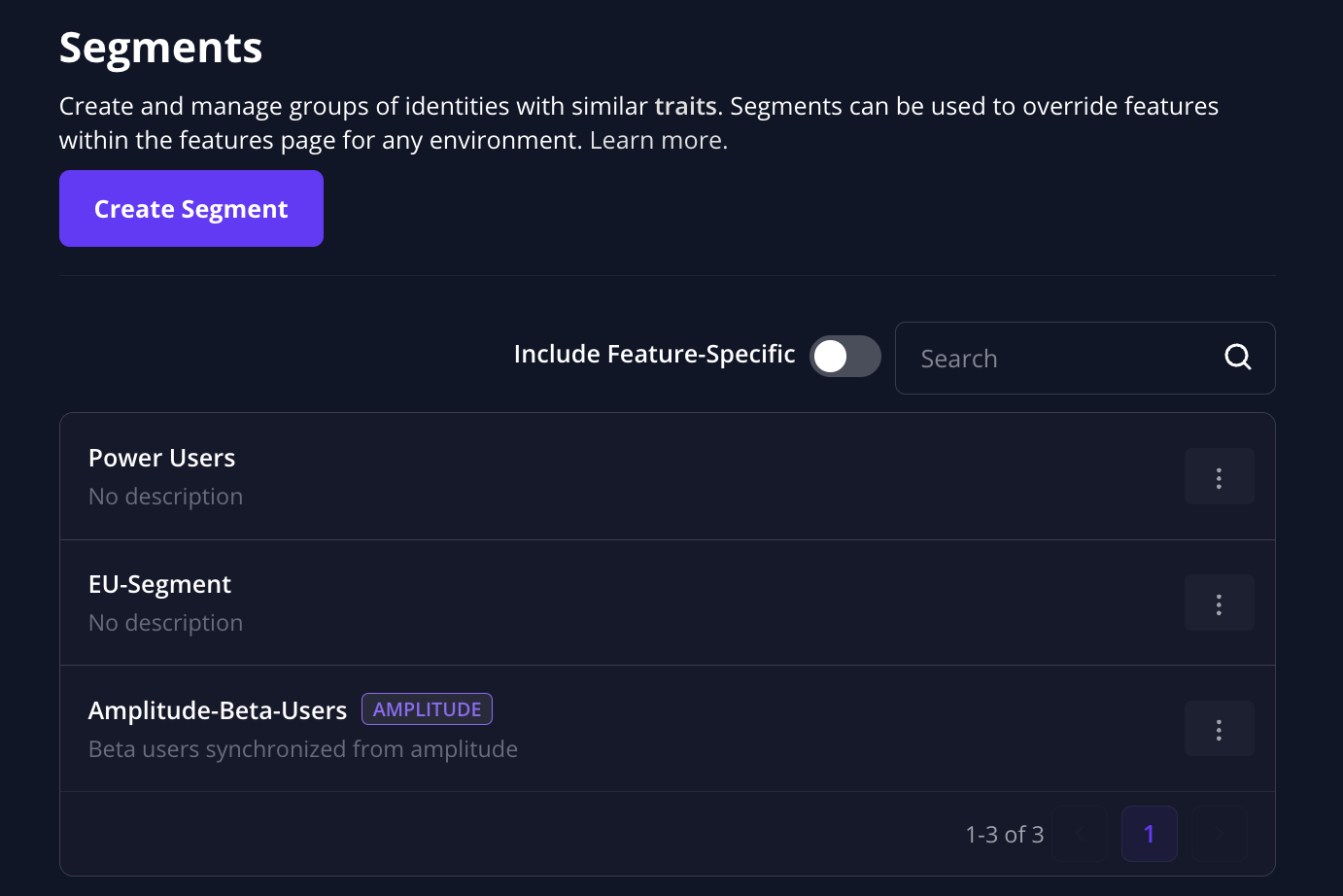
From there it behaves like any other segment: click on a feature in the connected environment, go to the Segment Overrides tab, and create an override for it. Identities that are members of the cohort — and are identified in your application with the same identifier — will receive the overridden flags.
Keep in mind:
- Membership updates arrive on your analytics platform's sync schedule, not instantly when a user's behaviour changes.
- The segment only has members in the environment the synchronisation key belongs to.
- Synchronising the same cohort to a second destination creates a separate segment.
Deleting a synchronised segment
Delete the segment from the Segments page like any other segment. Flagsmith removes the cohort's membership data as part of the deletion.
You should also stop the cohort sync on the provider's side. If the provider keeps sending updates for a deleted segment, Flagsmith rejects them, and the provider will report the sync as failing and may pause it.
Revoking access
To stop all synchronisation into an environment, revoke its synchronisation keys from Environment Settings > Cohorts. Existing segments and their members remain in place, but no further membership updates are accepted for a revoked key.